Inventory
Barcode system for a shop: how to set it up step by step
Scanner, labels, printer and software: everything needed to start using barcodes in your shop.
Typing product names at the counter is slow and full of mistakes. One wrong click and the customer is charged for the wrong item, and your stock is wrong too. A barcode system fixes both. The good news is that it is cheaper and simpler than most shop owners expect.
What you need
- A barcode scanner. A basic USB scanner is enough for most shops.
- POS or inventory software. This is where each barcode is linked to a product and its price.
- A label printer. Only needed for products that arrive without a barcode.
- Label rolls. Sticky labels in the size your printer supports.
How a barcode scanner works with software
A USB scanner behaves exactly like a keyboard. When it reads a barcode, it types the numbers and presses Enter. That is why it works with almost any software without special installation. If your scanner types the code but nothing is added to the bill, it is probably not sending Enter after the code. The scanner's manual has a setting barcode to switch that on.
Products that already have a barcode
Most packaged goods, such as drinks, biscuits, medicines and cosmetics, come with a barcode printed by the manufacturer. For these you do nothing except teach the software once: open the product, scan its barcode, save. From then on, scanning the pack adds it to the bill.
Printing your own barcodes
Loose items, clothes, shoes, fabric and locally made products have no barcode. For these the software generates a code and you print a label.
| Label size | Good for |
|---|---|
| 38 x 25 mm | Small items, shelf edges |
| 50 x 25 mm or 50 x 30 mm | General products, with name and price |
| Swing tag | Clothing and shoes, with size and colour |
| A4 label sheet | Printing many labels on an ordinary printer |
A thermal label printer is the practical choice if you print labels often. It needs no ink and prints one label or a hundred. If you print rarely, A4 label sheets on a normal printer are enough.
What to put on a label
- The barcode itself, large enough to scan easily
- The product name
- The price
- Size and colour for clothing and shoes
- Your shop name, if you want
Keep it simple. A crowded label is harder to scan and harder to read.
Sizes and colours need their own barcode
In a clothing or shoe shop, one design comes in many sizes. Each size should have its own barcode, because the size is what leaves the shop. Then scanning a tag puts the exact size on the bill and reduces the stock of that size only.
Use the scanner for stock counting too
A barcode system is not only for the counter. During a stock count you can scan every item on a shelf and let the software count for you. It then shows the difference between what it expected and what you found.
Common mistakes
- Labels too small. Tiny barcodes fail to scan. Test before printing hundreds.
- Same code on different products. Every product, and every size, needs a unique code.
- Wrong paper size in the printer settings. Set the exact label size in the printer driver or labels will drift.
- Not labelling new stock. Label deliveries on the day they arrive.
Getting started
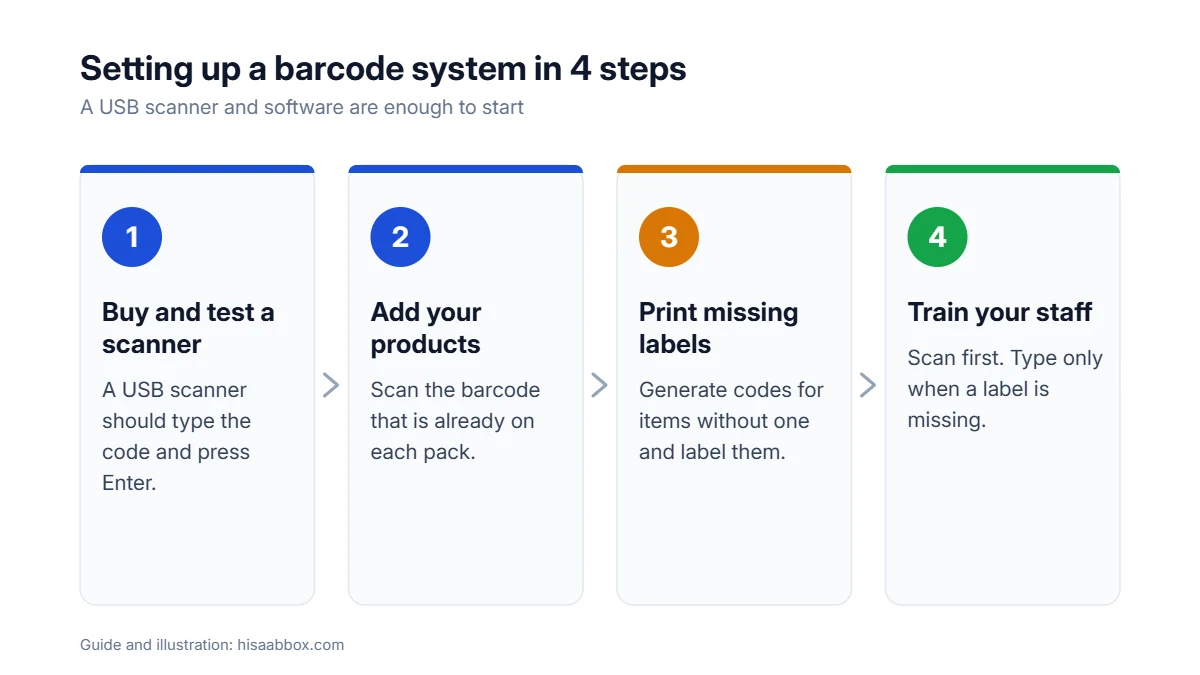
- Buy a USB scanner and test it in a text file: it should type the code and move to a new line.
- Add your products in the software and scan their barcodes.
- Print labels for products without one.
- Train staff to scan first and type only when a label is missing.
Our POS and inventory software prints barcode labels on thermal rolls and A4 sheets. To keep the stock behind those barcodes accurate, see how to manage shop inventory.
Common questions
How much equipment do I need for a barcode system?
A USB barcode scanner and POS or inventory software are enough to start. A label printer is only needed for products that do not already have a barcode.
Can I make my own barcodes for my products?
Yes. POS and inventory software can generate a code for any product and print it on a label, so items like clothes, shoes and loose goods can be scanned.
Why does my barcode scanner not add the item to the bill?
Usually the scanner is not sending an Enter key after the code. Use the setting barcode in the scanner manual to turn on the Enter suffix.
More guides

Zubair Aslam builds the POS, billing and inventory software shown on this site. Get in touch